NFC Studio · for Bambu Studio + AMS
Your logo, off the plate as an NFC card.
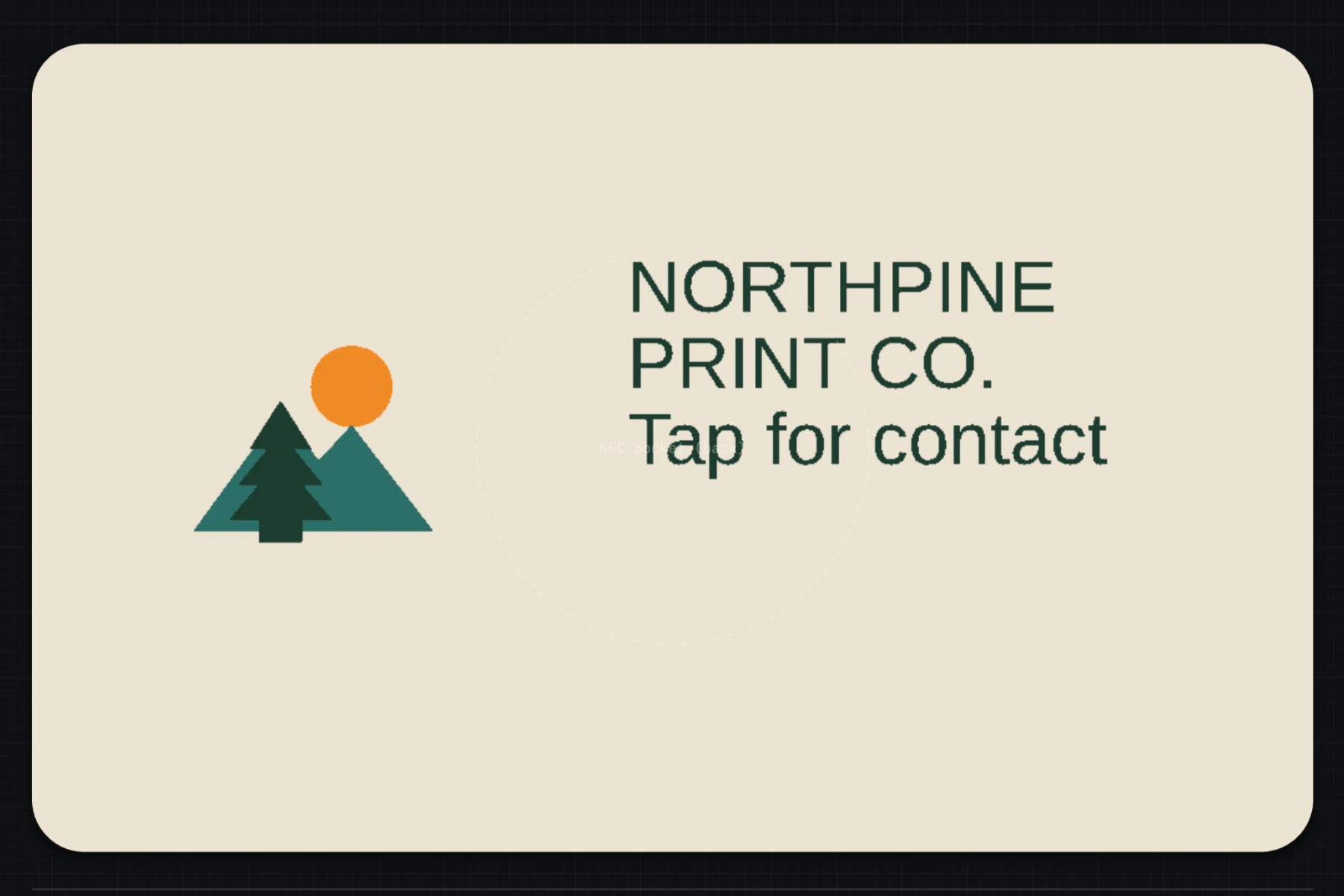
Drop in a logo. NFC Studio splits it into flat colours, traces clean edges and hands you a set of STL files your Bambu prints in up to four filaments, with the NFC tag sealed inside and the pause layer worked out for you. Business cards or keychains.

3 colours
Built by someone who prints
The fiddly parts are already handled.
A pretty preview is easy. A card that comes off the plate right the first time takes a few details most logo-to-STL tools skip.
- Sealed tag
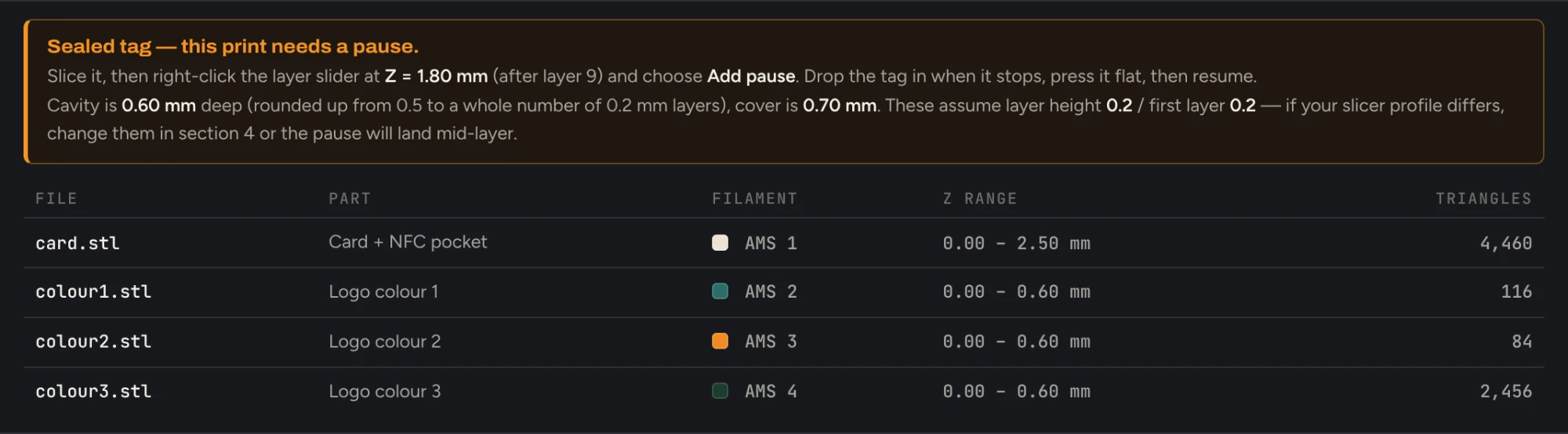
- The tag ends up fully enclosed. No sticker or recess on the back. The cavity is built to your tag's real thickness, so the cover prints straight onto the tag instead of sagging over open air. Prefer an open pocket? Untick one box.
- Pause layer
- It tells you exactly where to stop. For example
Z = 1.80 mm, after layer 9. The cavity's floor and ceiling are snapped to real layer boundaries for your layer and first-layer heights, so the pause lands cleanly and the back stays flat. - AMS slots
- Every file has a slot. The card body is AMS 1, logo colours are AMS 2–4. Sample colours straight off your logo, or lock your own palette. A fourth logo colour is supported too, and the tool warns you that it needs a fifth filament.
- Face-down
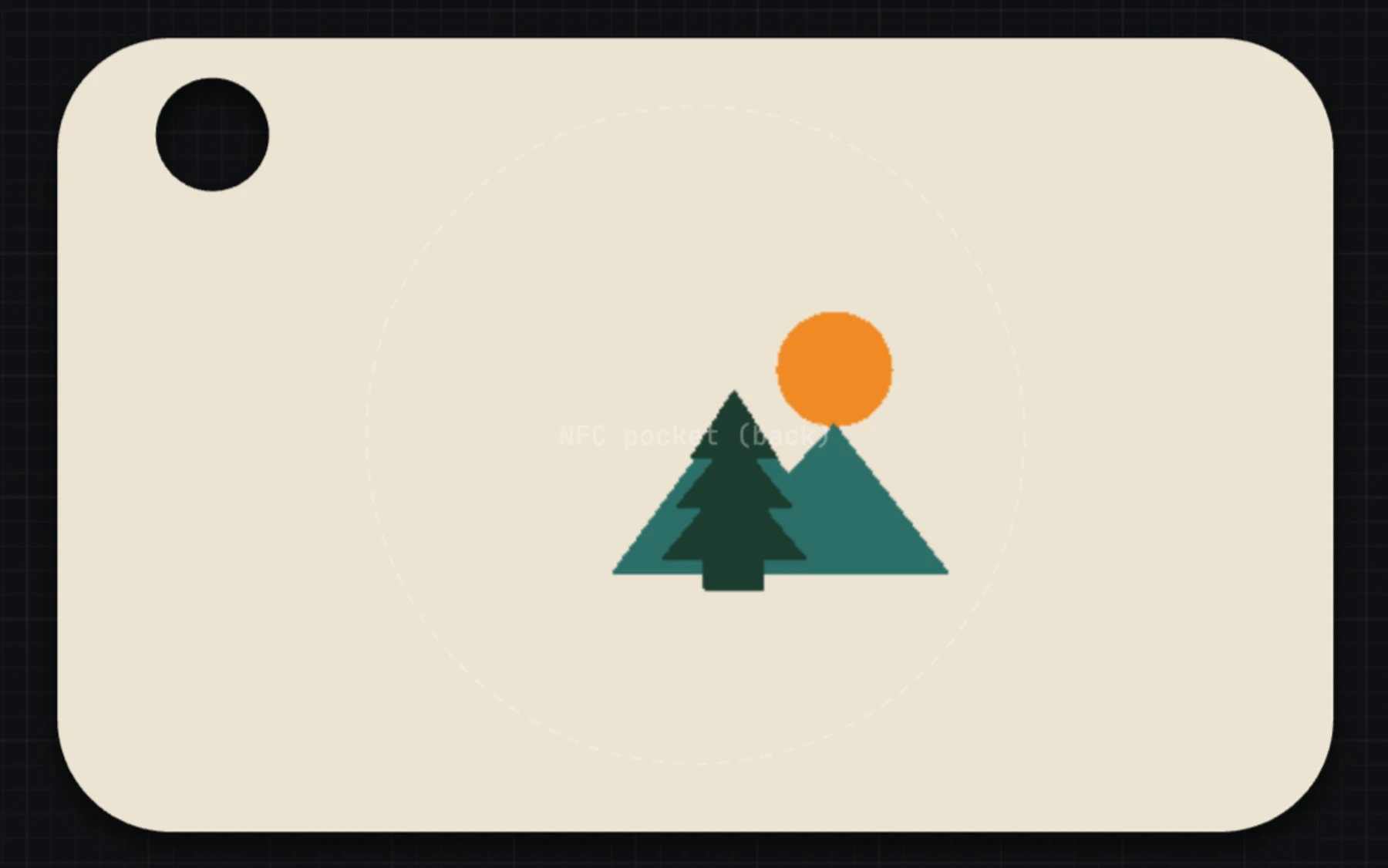
- The card prints face-down, so the export is mirrored for you. The logo is the first layers against the plate, which is why a textured plate becomes the card's finish. When you peel it off and turn it over, it reads the right way round. Don't rotate it.
- Watertight
- Closed, manifold meshes. Colour parts drop exactly into recesses in the card, with no gaps or overlaps. Bambu Studio shouldn't ask to repair them.
- Colour swaps
- Colour only lives in the first few layers. 0.6 mm of colour is three 0.2 mm layers, so filament changes, and purge, stop early. Fill the plate with cards and you pay that purge once per layer, not once per card.
Cards and keychains
One click to a sensible size.
Each preset sets the outline, thickness, tag size and keyring hole together. Keychains are 3 mm because they take more abuse than a card. Or set any size, shape and corner radius yourself.
| Preset | Size | Tag | Hole |
|---|---|---|---|
| Keychain | 45 × 28 × 3 mm | 22 mm | top left |
| Pill keychain | 50 × 25 × 3 mm | 20 mm | left end |
| Round keychain | Ø 35 × 3 mm | 22 mm | top centre |
| Square keytag | 38 × 38 × 3 mm | 25 mm | top left |
| Preset | Size | Tag |
|---|---|---|
| Credit card (CR80) | 85.6 × 54 × 2.5 mm | 25 mm |
| US business card | 88.9 × 50.8 × 2.5 mm | 25 mm |
| EU business card | 85 × 55 × 2.5 mm | 25 mm |
The keyring hole goes straight through, and the artwork and tag cavity are held clear of it automatically. 4 mm suits a split ring; 5 mm a lanyard clip.
How it works
From logo file to a card in your hand.
Drop in your logo
PNG, JPG, SVG or WEBP. A transparent PNG or an SVG traces best. The background colour is dropped automatically.
Check the colours
It separates the art into flat colours and shows which AMS slot each one goes to. Lower the count to lose a stray shade, sample a colour off the logo, or lock your own.
Pick a card or keychain
Choose a preset and a tag. Add company info as real geometry if you like: up to three lines, printed in one of your logo colours.
Build and download
Build the mesh, spin the 3D preview, then download the STL set as a .zip.
Load it into Bambu Studio In your slicer
Drag all the STLs onto the plate at once and answer Yes to loading them as one object with multiple parts. Set each part's filament to the slot the tool gave it.
Add the pause, print, drop in the tag At the printer
Right-click the layer slider at the height the tool reported and choose Add pause. When it stops, press the tag flat in the cavity and resume. The next layers close over it.
3D preview
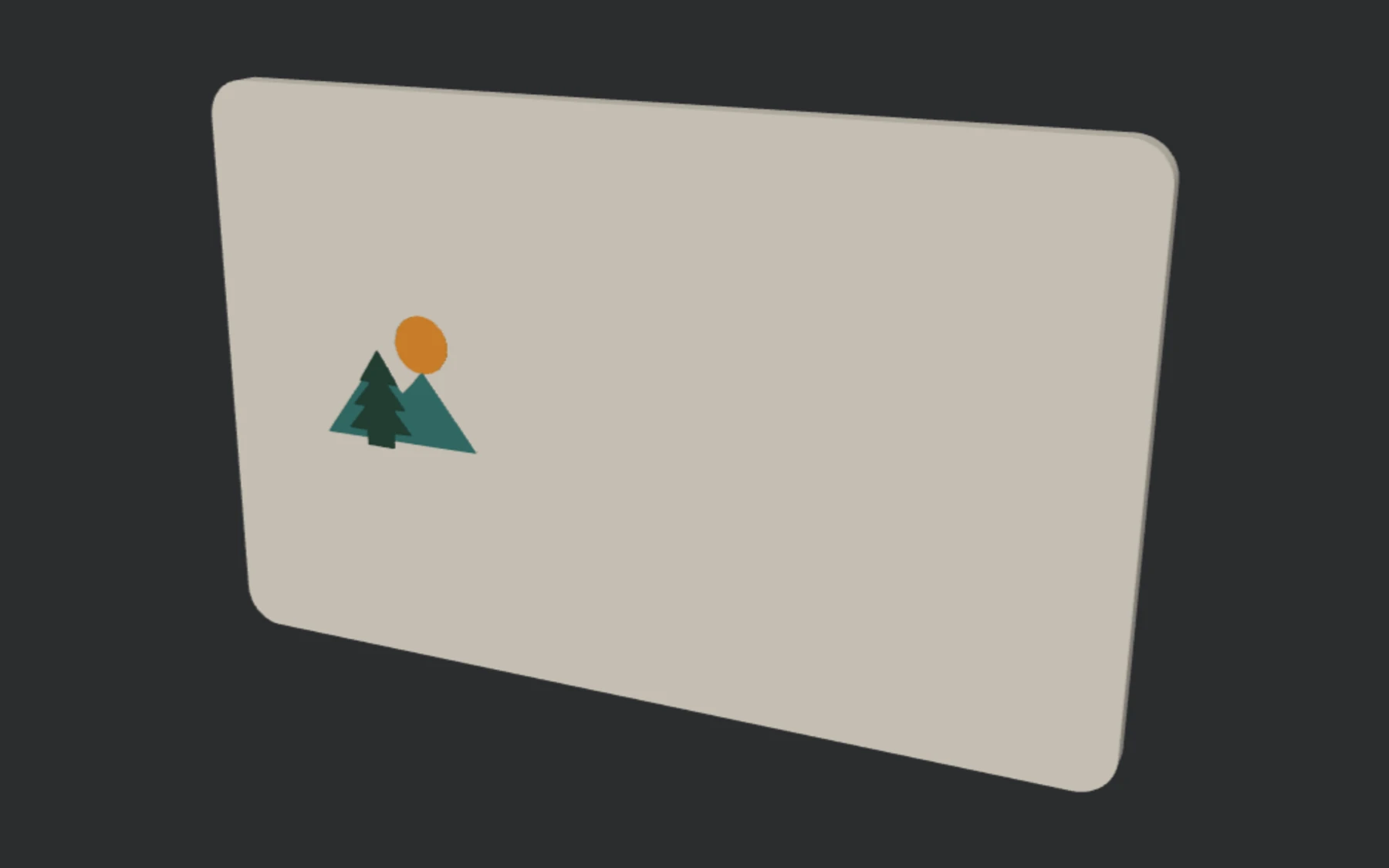
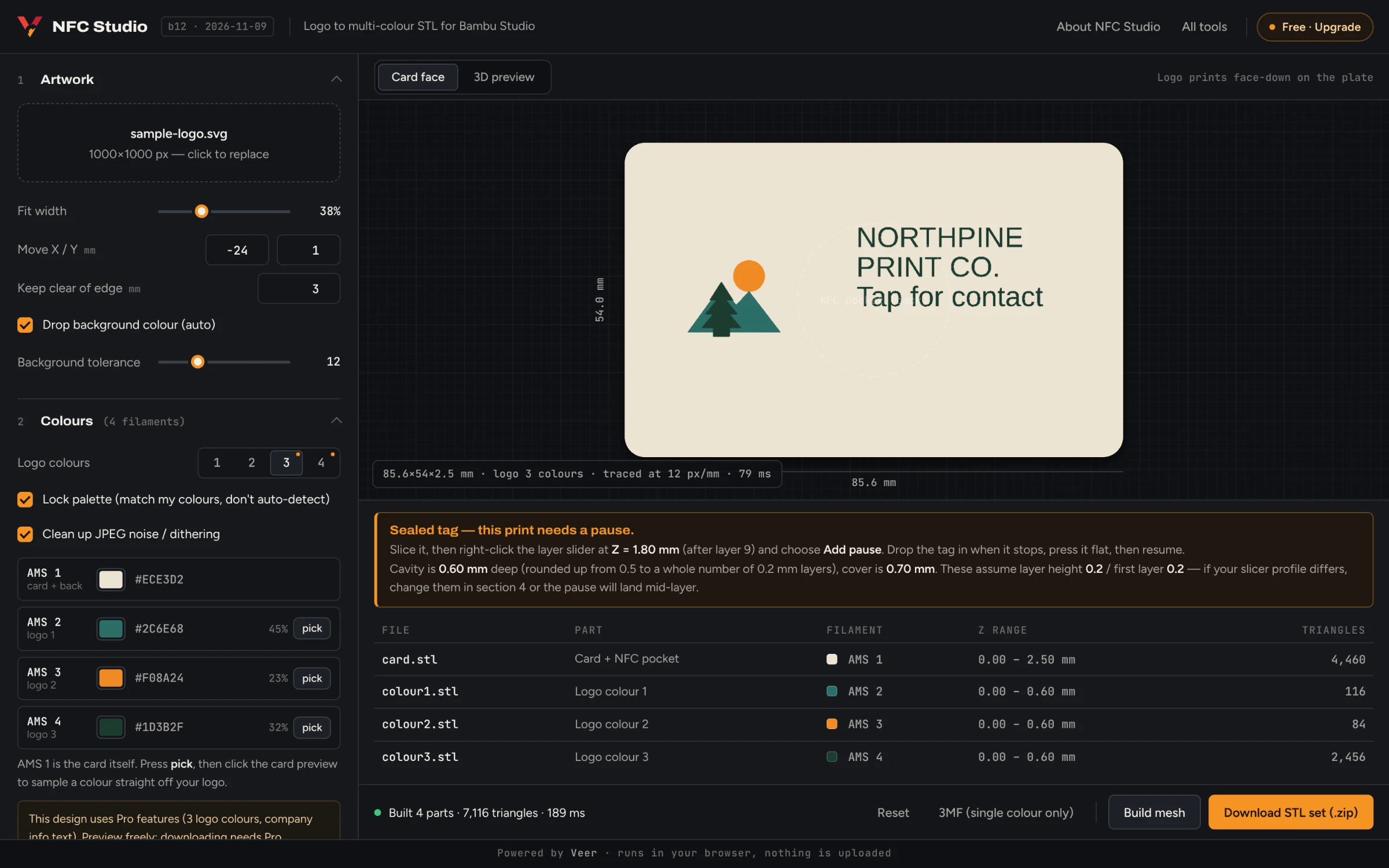
After Build mesh you're looking at the actual solids that go into the zip, not a picture of them: drag to turn the card over, scroll to zoom. The status line reports the part and triangle counts.
What's in the download
One STL per filament, and the notes to print them.
- One solid per filament. STL holds no colour, so a closed solid per filament is how a multi-colour part is described. A three-colour logo gives four files.
- All parts share one origin. Load them together and they line up exactly. Don't move them individually.
- A README with your numbers. Card size, colour depth, cavity size, the pause height and layer, the AMS slot for each file, and import and slicing steps.
- A 3MF button for other slicers. It's labelled single-colour for Bambu, for a reason: see the FAQ.
northpine_85.6x54_STL.zip
└─ northpine_85.6x54/
   ├─ 1_card.stl      AMS 1  card + tag cavity
   ├─ 2_colour1.stl   AMS 2  logo colour 1
   ├─ 3_colour2.stl   AMS 3  logo colour 2
   ├─ 4_colour3.stl   AMS 4  logo colour 3
   └─ README.txt      sizes, pause, steps
Who it's for
Your own cards, or your customers'.
Makers with a Bambu and an AMS
You want a business card people keep, or a keychain that opens your link with a tap. Pro gives you the full colour logo, your company details in raised text, and a clean back.
Etsy and market sellers
A customer sends a logo; you print a plate of their cards and post them out. Commercial covers selling what you print and making files for clients.
Raised, multi-colour cards with a hidden tag aren't something a factory turns out for pennies, which is the point.
Pricing
Design free. Pay once when you want the full card.
Every feature works in the designer on every plan. The plan only matters when you download.
- 1–2 logo colours
- Every shape, keychain and tag option
- Sealed NFC tag with pause layer
- A small Veer mark debossed one layer into the back
- Personal use
- Up to 4 logo colours
- Company info text
- Clean back, no mark
- All future NFC Studio updates
- Personal use
- Everything in Pro
- Sell the cards and keychains you print
- Make files for clients
You get a license key by email. Paste it into the tool once, online; after that NFC Studio works offline. No account, no subscription.
The tool
Everything on one screen.
FAQ
Questions makers ask.
Which NFC tags should I buy?
Round NTAG215 stickers, 25 mm, are the default for cards. Keychains use 22 mm (an NTAG213 sticker), 20 mm on the pill. The tool also has presets for 30 mm stickers and a 45 × 25 mm rectangular wet inlay, or you can enter any size. NTAG215 holds 504 bytes, enough for a full contact card; NTAG213 holds 144, fine for a link. Measure your tag's thickness with calipers if you can and enter it: a bare sticker is about 0.3–0.4 mm, a foam-backed disc nearer 0.8 mm.
Does it work with OrcaSlicer?
NFC Studio is built and tested against Bambu Studio. OrcaSlicer is based on Bambu Studio and imports multiple STLs the same way: select them all, load them as one object with multiple parts, then set each part's filament. You add the pause from the layer slider in the preview, as in Bambu Studio. Use the STL set, not the 3MF.
Why STL files and not a 3MF?
Bambu Studio only keeps part and filament data from 3MF files it wrote itself. Anything else gets the message "The 3mf is not from Bambu Lab, load geometry data and color data only" and is flattened into one object with one filament. That holds even when the file matches Bambu's own layout, which ours does. The only way around it is to embed a full printer and filament profile, which would overwrite your print settings. Loading the STL set as one object with multiple parts is the reliable path, so that's what NFC Studio gives you.
Do I need an AMS?
You need a printer that can print several filaments in the same layer: an AMS, AMS Lite, or similar. A manual colour change at a layer won't work, because the logo sits in the same layers as the card face. Card plus three logo colours fills a four-slot AMS.
How do I program the tag?
With your phone and a free NFC app such as NFC Tools. Write a link, a contact card, or whatever you want a tap to open. Writing it before you drop it in lets you check it works. It also works afterwards, through the printed cover. Most apps can lock a tag so it can't be rewritten; that's permanent, so lock it last. Keep finished cards off metal surfaces, which detune the antenna.
Is my logo uploaded anywhere?
No. Tracing, meshing and the zip are all done in your browser. Your logo never leaves your machine. The only network call is the one-time license check when you unlock Pro.
Can I sell what I print?
With Commercial, yes: cards and keychains you print, and files you make for clients. Free and Pro are for personal use.
Put your logo on the plate.
Open the tool, drop in a logo and see the card. It's free to try, with nothing to install and no account.